
Setting Up Account Mapping
This guide walks you through configuring how your Stripe transactions map to your QuickBooks chart of accounts.
Overview
Before SyncFast can automatically book your Stripe payouts, you need to tell it which QuickBooks accounts to use for each type of transaction. This includes:
- Revenue accounts — for sales and refunds
- Expense accounts — for Stripe fees and chargebacks
- Asset accounts — for your Stripe deposit account
Required QuickBooks Accounts
You'll need the following accounts in your QuickBooks chart of accounts before you begin:
| Transaction Type | Suggested Account Type | Example Account Names |
|---|---|---|
| Sales Revenue | Income | Sales Income, Service Revenue, Product Sales |
| Refunds | Income (contra-revenue) | Refunds, Sales Returns, Customer Refunds |
| Processing Fees | Expense | Payment Processing Fees, Merchant Fees, Stripe Fees |
| Chargebacks | Expense | Chargeback Losses, Disputed Transaction Fees |
| Other Fees | Expense | Other Stripe Fees, Miscellaneous Fees |
| Stripe Clearing | Bank or Other Current Asset | Stripe Clearing, Stripe Balance |
| Payout Deposit | Bank | Business Checking, USD Checking |
Creating Accounts in QuickBooks
If you don't have these accounts set up yet:
- Log in to QuickBooks Online
- Go to Accounting → Chart of Accounts
- Click New to create each account:
- For revenue accounts: Select Income as the account type
- For expense accounts: Select Expense as the account type
- For the deposit account: Select Bank or Other Current Asset
TIP
You can name these accounts whatever makes sense for your business. SyncFast will let you select from your existing accounts—no special naming conventions required.
Syncing Your QuickBooks Accounts
After creating accounts in QuickBooks (or if you already have them), you need to refresh the account list in SyncFast:
- Go to Settings → Account Mapping in your SyncFast dashboard
- Click Refresh Accounts (if you see "No accounts synced yet")
- Wait a few seconds for the sync to complete
Before Syncing
When you first open Account Mapping, you'll see the empty state:
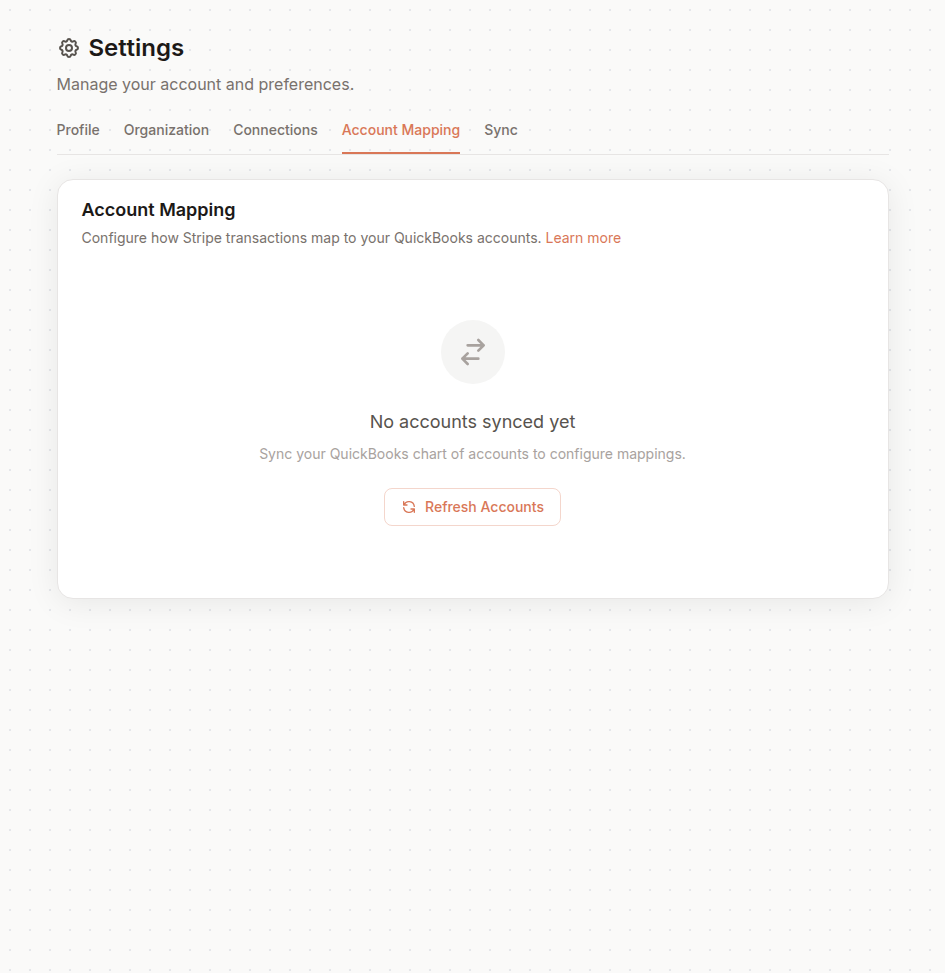
Click Refresh Accounts to pull your QuickBooks chart of accounts into SyncFast.
After Syncing
Once synced, you'll see your available accounts and can begin mapping:
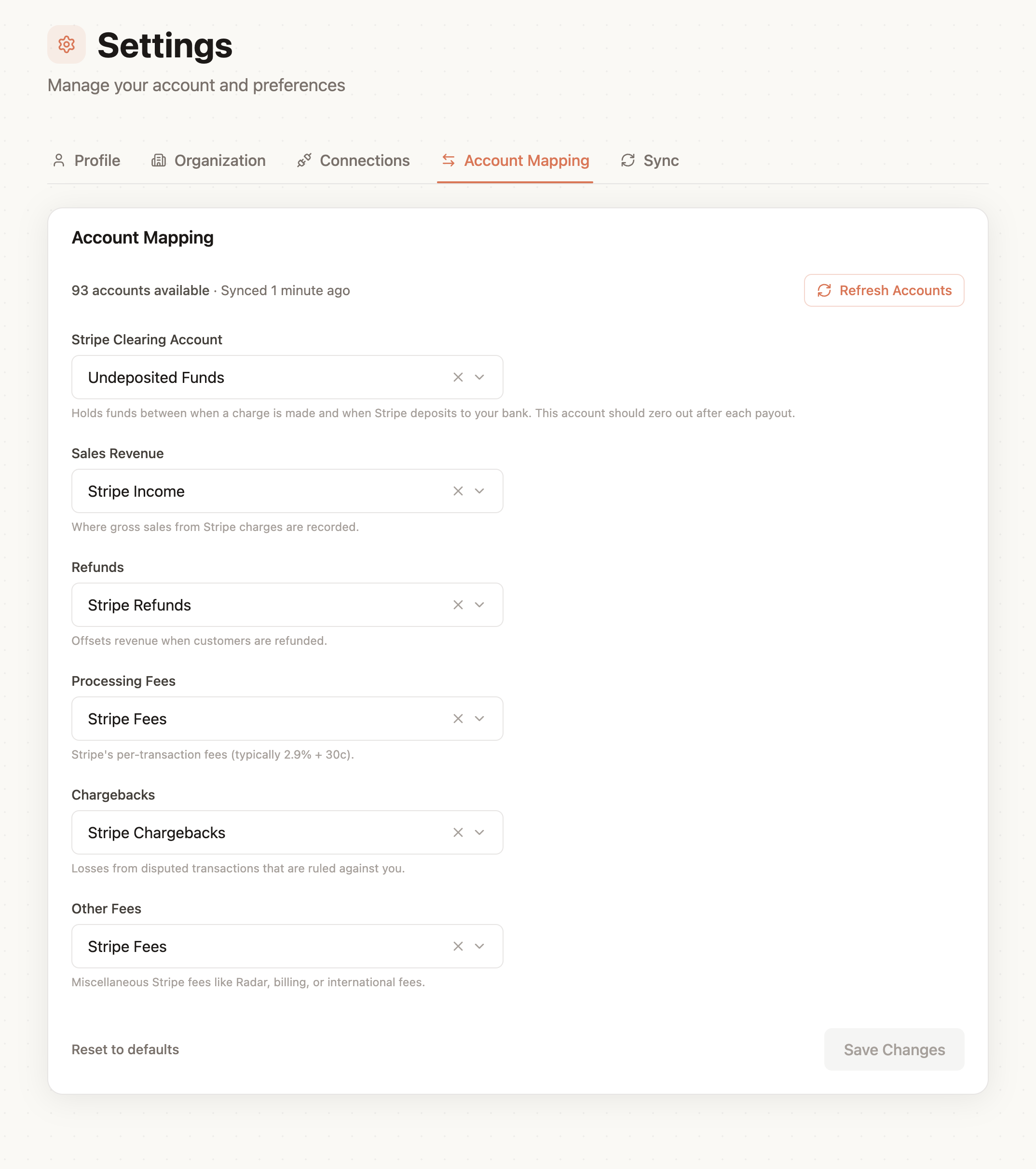
INFO
The refresh pulls your current chart of accounts from QuickBooks. If you add new accounts later, you'll need to refresh again to see them.
Mapping Stripe Categories to QuickBooks
Once your accounts are synced, you'll see dropdowns for each Stripe transaction type:
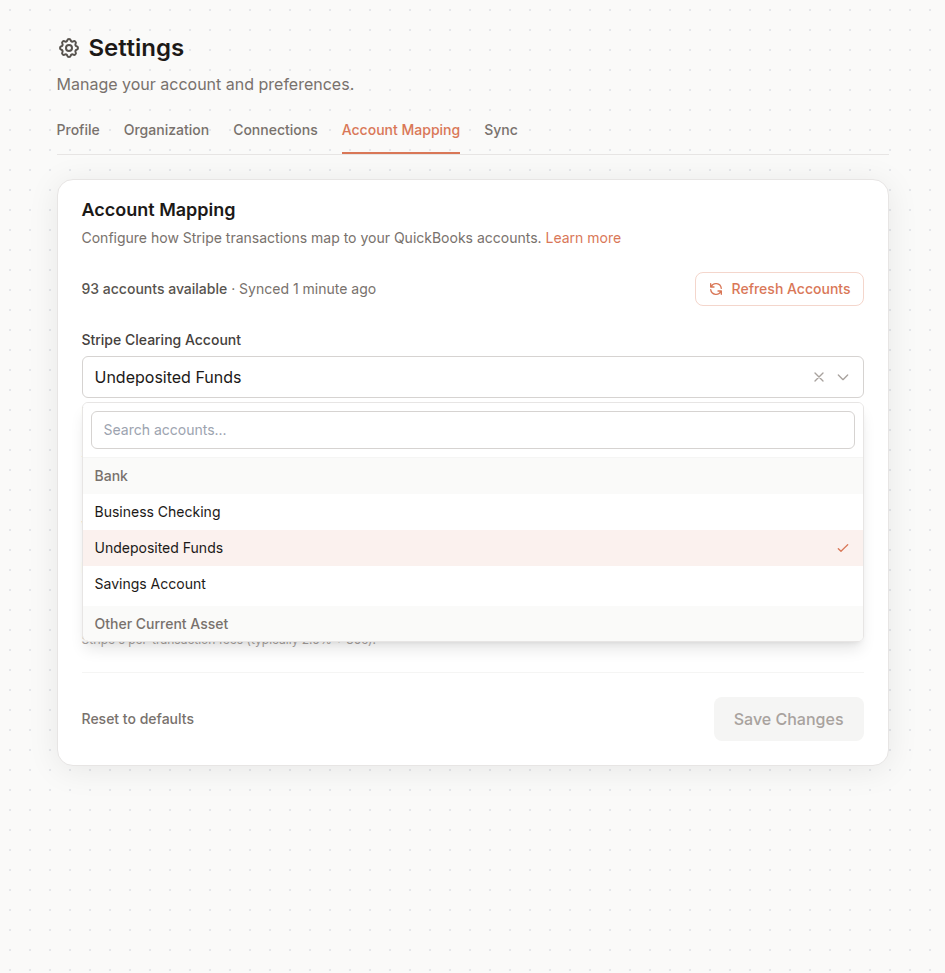
Click any dropdown to see your available QuickBooks accounts, organized by account type (Bank, Income, Expense, etc.).
1. Stripe Clearing
The balance-sheet account that holds Stripe activity until it is reconciled to a payout.
- What it does: Balances sales, fees, refunds, and other Stripe activity
- Why it matters: Its balance represents funds held by Stripe and can be cleared when deposits reach your bank
- Account type: Other Current Asset
2. Payout Deposit Account
The QuickBooks bank account where Stripe deposits payouts. This is stored separately for future payout settlement and does not change current payout booking.
- Maps to: Your actual checking or savings account
- Example: "Business Checking"
3. Sales Revenue
Where your gross sales from Stripe charges are recorded.
- Maps to: Your primary income account for sales
- Example: "Sales Income" or "Service Revenue"
4. Refunds
Offsets revenue when customers are refunded.
- Maps to: A revenue account (often the same as sales, or a separate contra-revenue account)
- Example: "Refunds" or "Sales Returns"
5. Processing Fees
Records Stripe's per-transaction fees (typically 2.9% + 30¢).
- Maps to: An expense account
- Example: "Payment Processing Fees" or "Stripe Fees"
6. Chargebacks
Tracks losses from disputed transactions ruled against you.
- Maps to: An expense account
- Example: "Chargeback Losses" or "Dispute Fees"
7. Other Fees
Captures miscellaneous Stripe fees like Radar, billing, or international fees.
- Maps to: An expense account
- Example: "Other Stripe Fees" or "Miscellaneous Fees"
Saving Your Mappings
After selecting accounts for each category:
- Review your selections
- Click Save Changes
- Your mappings take effect immediately for all future syncs
WARNING
Changes only apply to future payouts. Previously synced transactions are not affected.
Example Configuration
Here's a typical setup for a small business:
| Stripe Category | QuickBooks Account | Account Type |
|---|---|---|
| Stripe Clearing | Stripe Clearing | Other Current Asset |
| Payout Deposit | Business Checking | Bank |
| Sales Revenue | Sales of Product Income | Income |
| Refunds | Refunds Given | Income |
| Processing Fees | Merchant Account Fees | Expense |
| Chargebacks | Chargeback Losses | Expense |
| Other Fees | Other Stripe Fees | Expense |
Troubleshooting
"No accounts available" in dropdown
- Make sure you've clicked Refresh Accounts after connecting QuickBooks
- Verify the accounts exist in QuickBooks and are marked as Active
- Check that account types match (e.g., revenue accounts for revenue mapping)
Account doesn't appear after creating in QuickBooks
- Click Refresh Accounts again
- Wait 30-60 seconds—there may be a brief delay
- Ensure the account is active in QuickBooks
Need to change mappings later
You can update mappings at any time:
- Go to Settings → Account Mapping
- Change any dropdown selection
- Click Save Changes
Next Steps
Once account mapping is configured:
- Enable auto-sync to start automatic booking
- Learn about account routing for complex multi-entity setups
- Review the reconciliation guide to verify your books are accurate